RVT / DWG
CAD On/Off
- Made because the built-in Revit feature is clunky
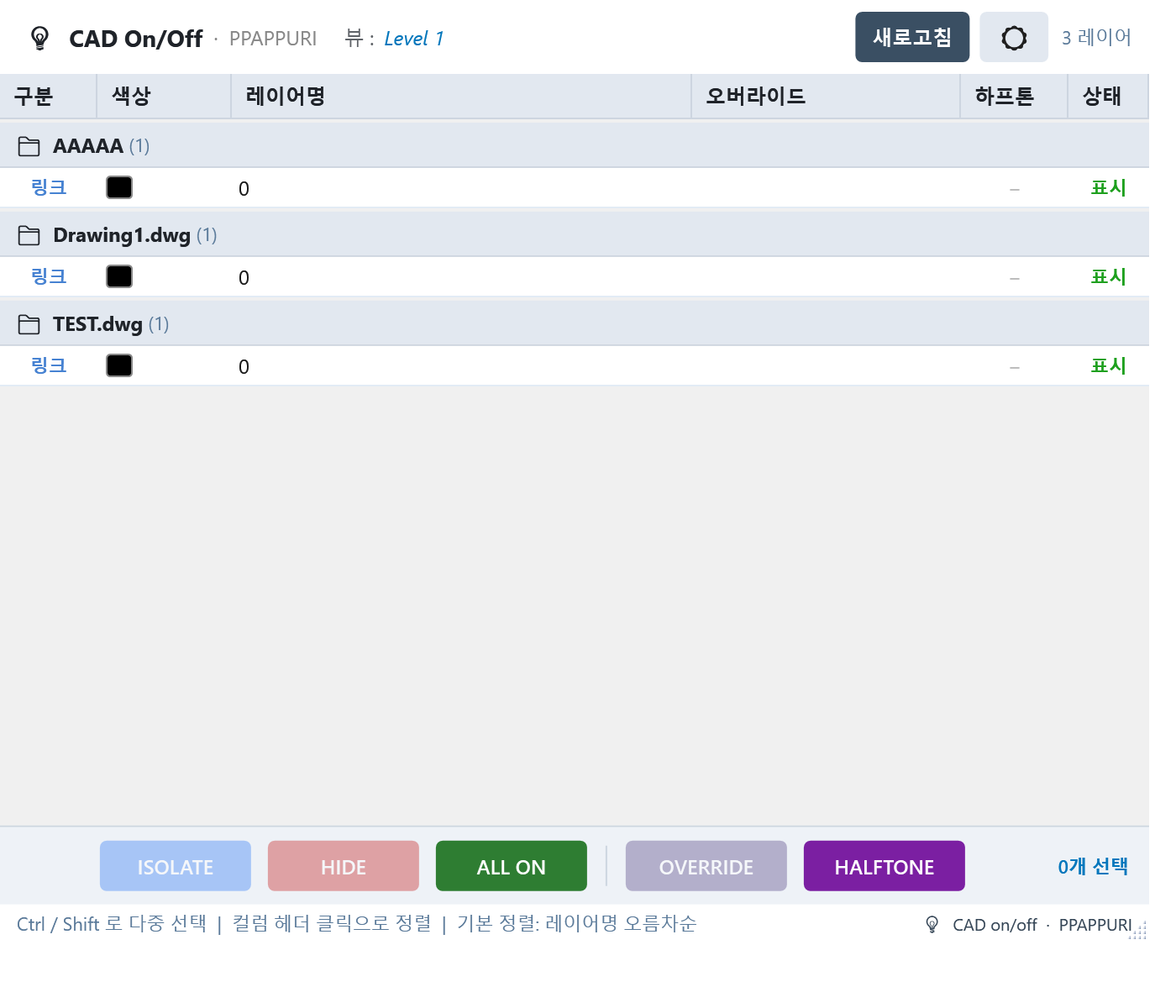
- Refresh → loads the CAD layers in the current view
- Select one or more rows, then use the ISOLATE / HIDE / ALL ON buttons
Auto Link
- Bulk auto-link RVT/DWG and auto-repath
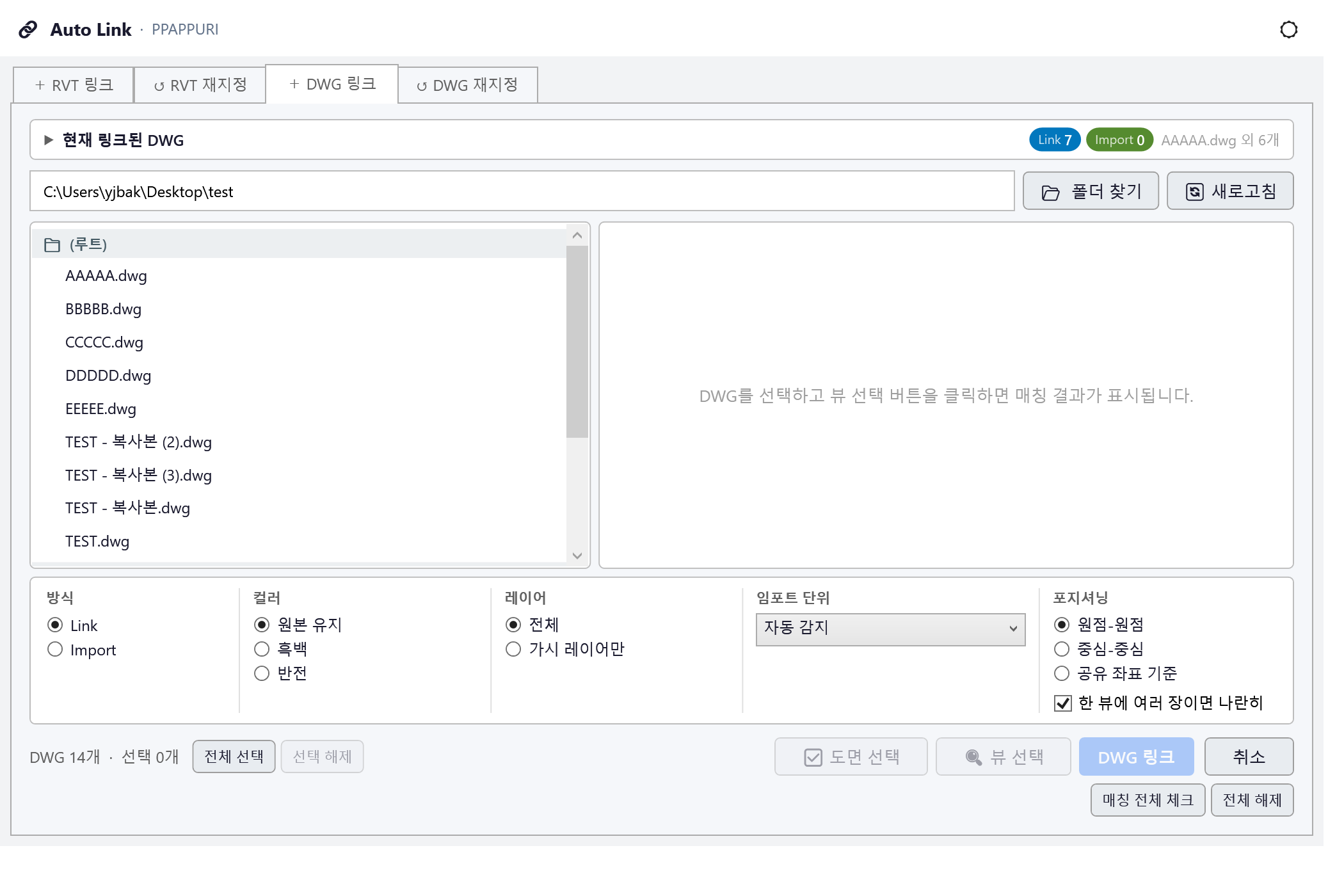
- Link RVT → choose a folder, then select the files to link
- Repath RVT → choose the folder containing the files to repath
- Link DWG → choose the folder with the CAD files → click Select drawings → choose the view the CAD will be linked into
*Files are matched 1:1 in ascending name order.
- Repath DWG → choose the folder containing the files to repath
*Exact match: matches only when names are identical
*Partial match: matches when the name is contained but has extra text (e.g. “L3 Floor Plan” → “20260703_L3 Floor Plan”)
*Fuzzy match: scores name similarity as a percentage and matches the highest
*For splitting drawings, we recommend xicad
Auto Detach
- Bulk auto-detach RVT
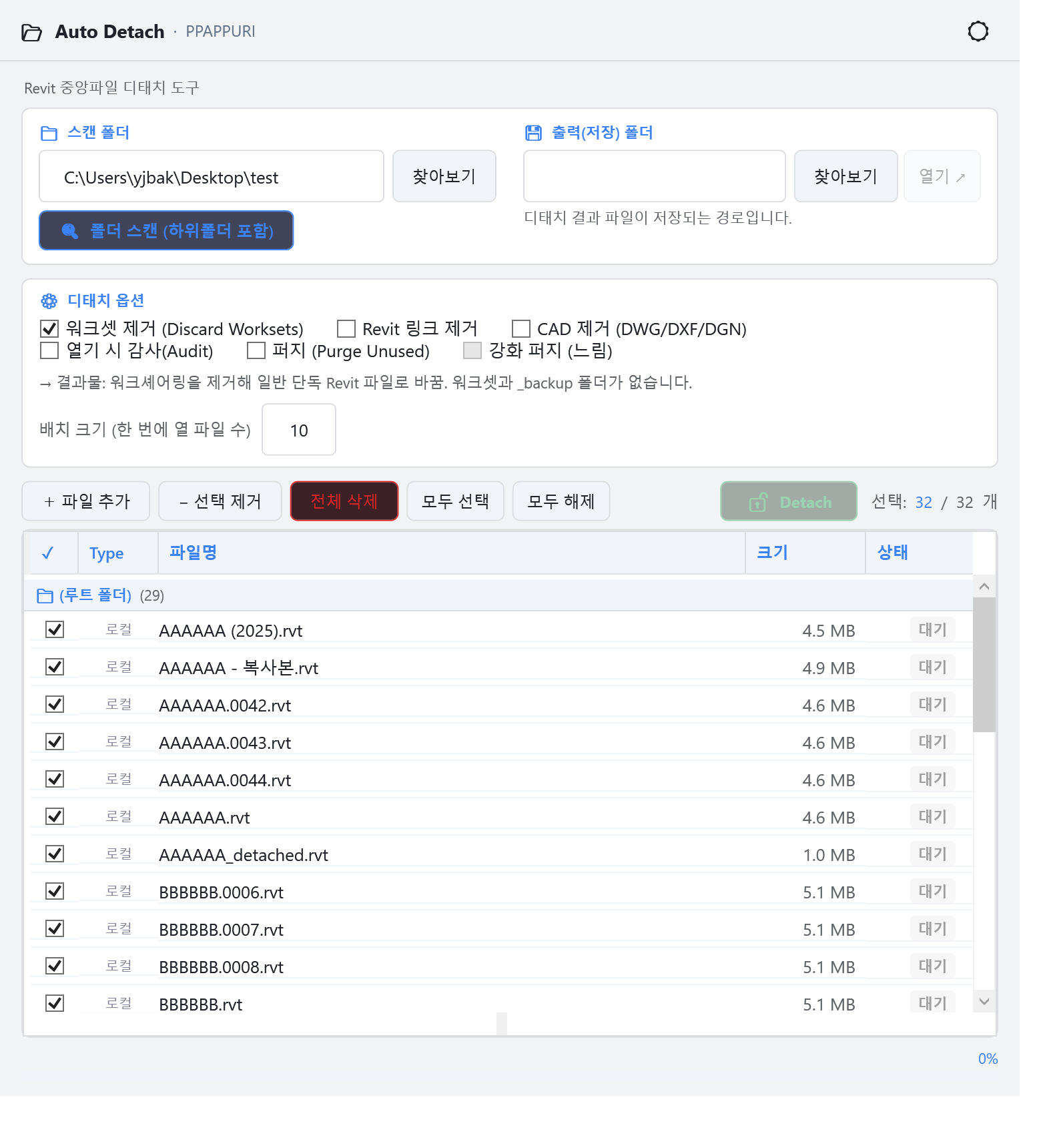
- Set the scan folder → click Scan Folder
- Set the output folder
- Choose options, select files, then run detach
Auto Separate
- Split an RVT file by parameter value
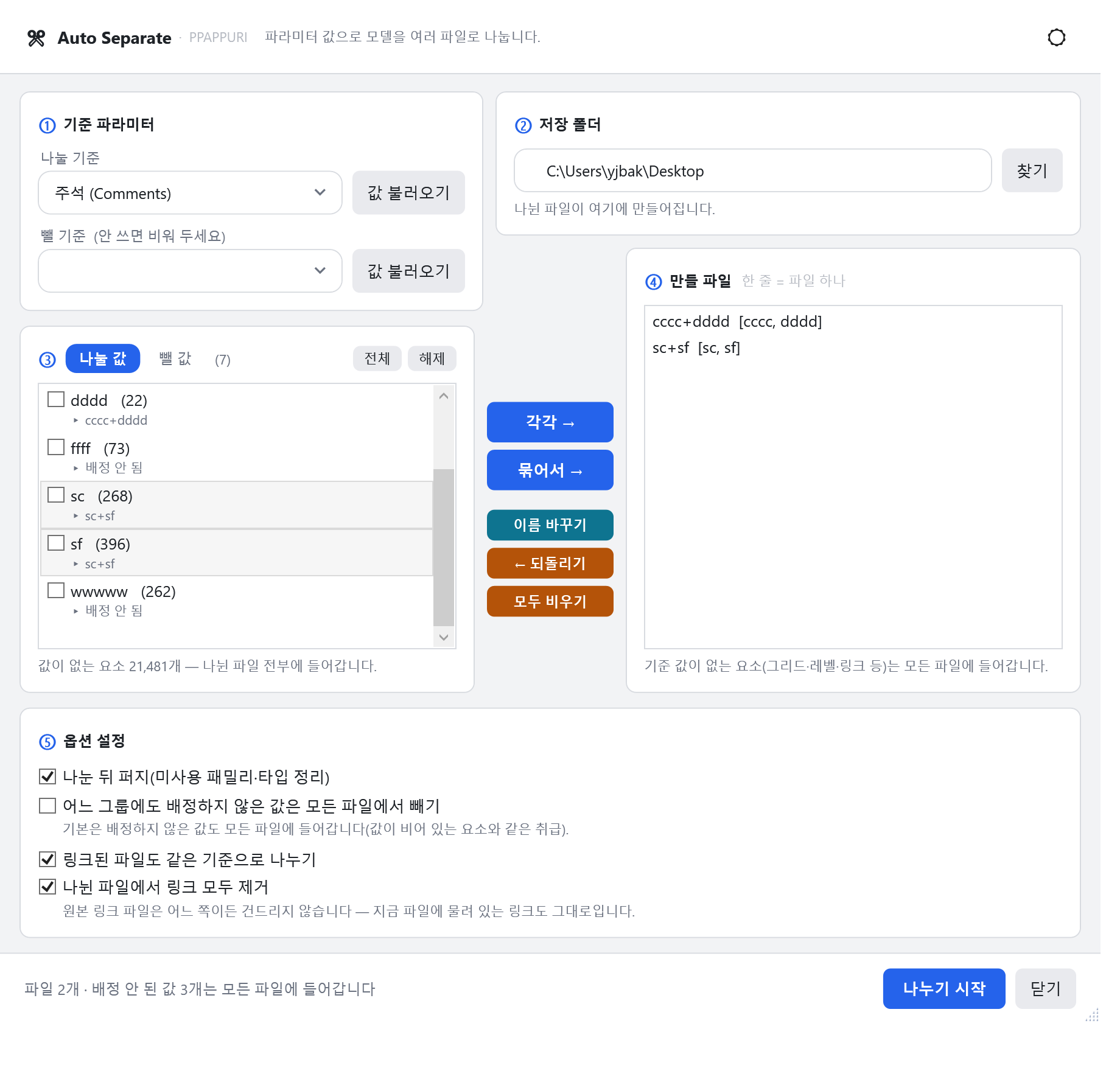
- Key parameter — pick the parameter to split by, and optionally one to exclude by
- Values to split — group a and b together and you get one RVT containing both a and b
*By default, elements with no value for that parameter — or with a value you did not assign — go into every file that is created. You can leave them out with an option.
*The split files are always saved detached. The original file is left untouched.