Plus
Plus Filter
- Enhanced Revit filters (can even distinguish by type)
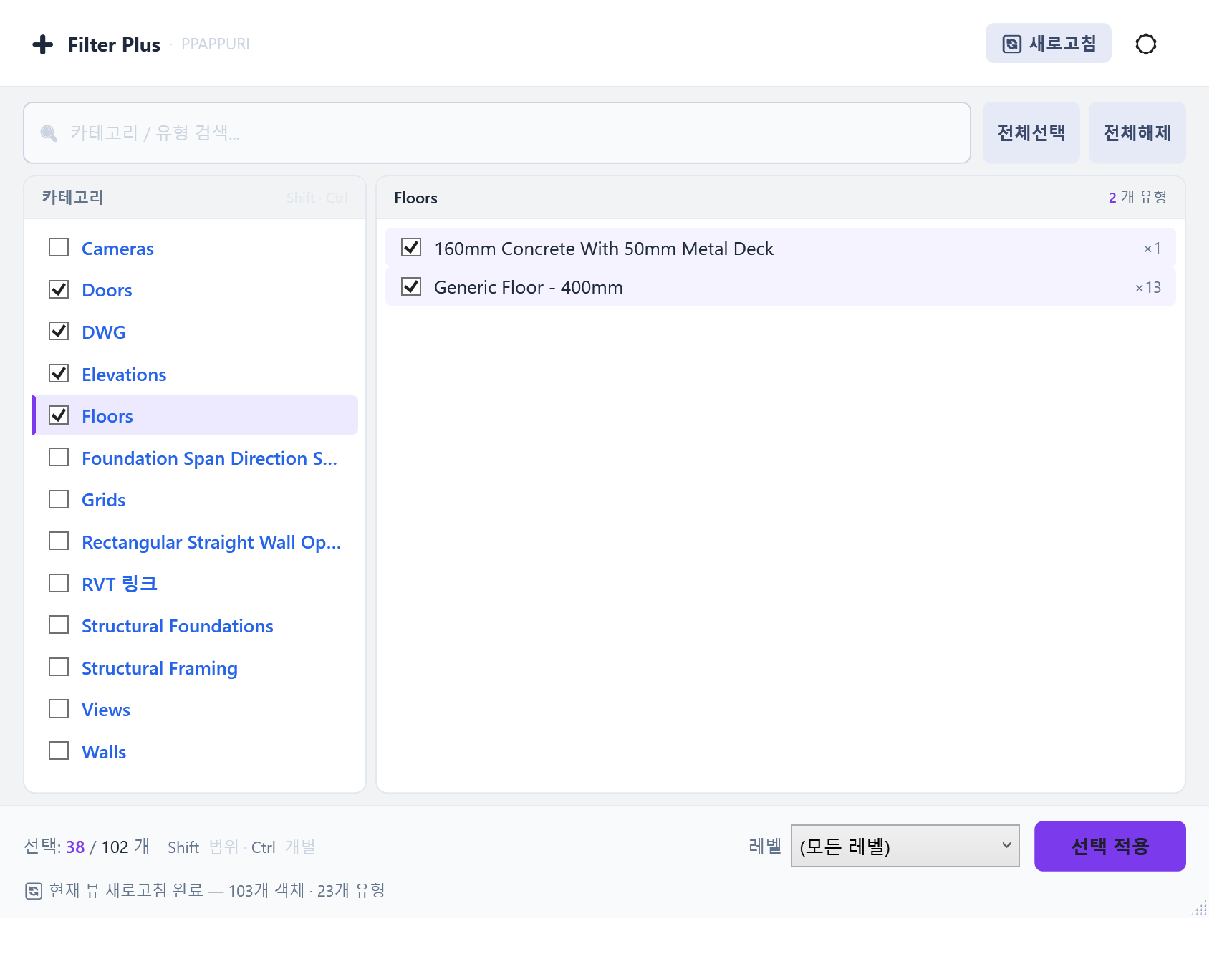
- Refresh → loads categories based on the current view
- Apply selection → selects those objects
Plus Schedule
- Enhanced Revit schedules
- May contain bugs………
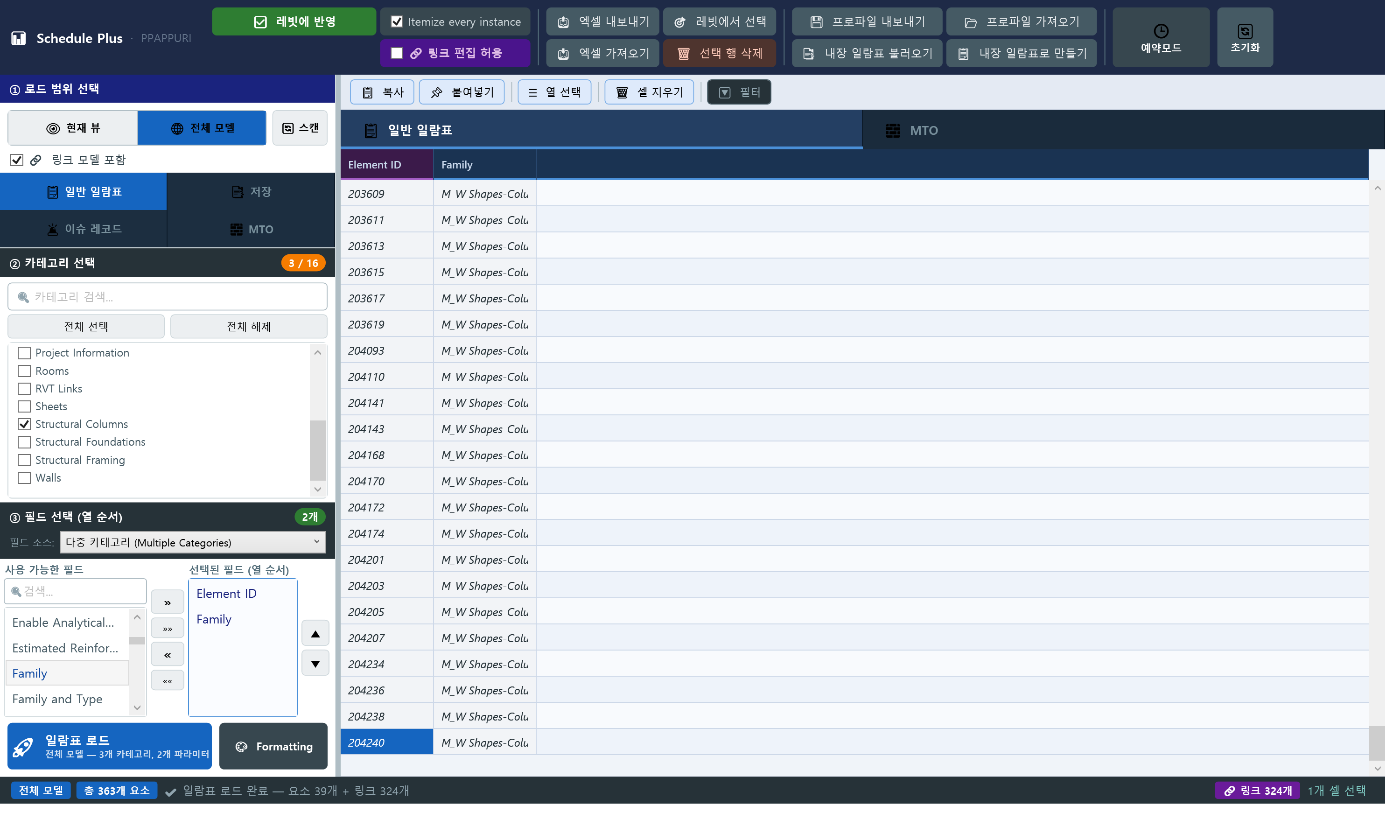
- Works like the Revit schedule feature
- Allow editing links → also lets you edit parameters of objects inside linked files (slow for large files)
- Save → saves the selected categories, field state, and filters (auto-syncs when objects change)
- Issue Record → pull saved objects from “Issue Record”. Load, pick a group → choose fields
- Export/import Excel → editable externally
- Save settings → saves the selected categories, field state, and filters externally → reusable in other files
- Reserve mode → queue up the slow operations and run them all in one go
Plus CSV
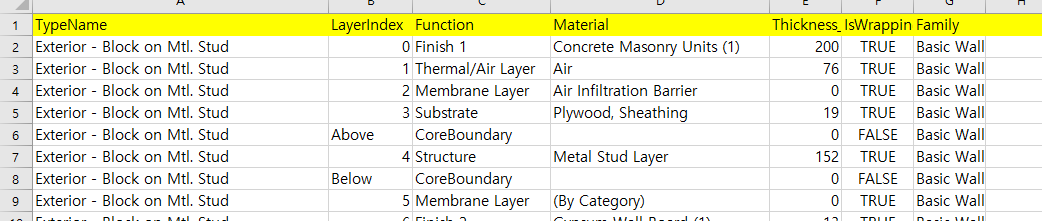
- Excel editing for system families (Wall / Floor / Ceiling / Structural Foundation)
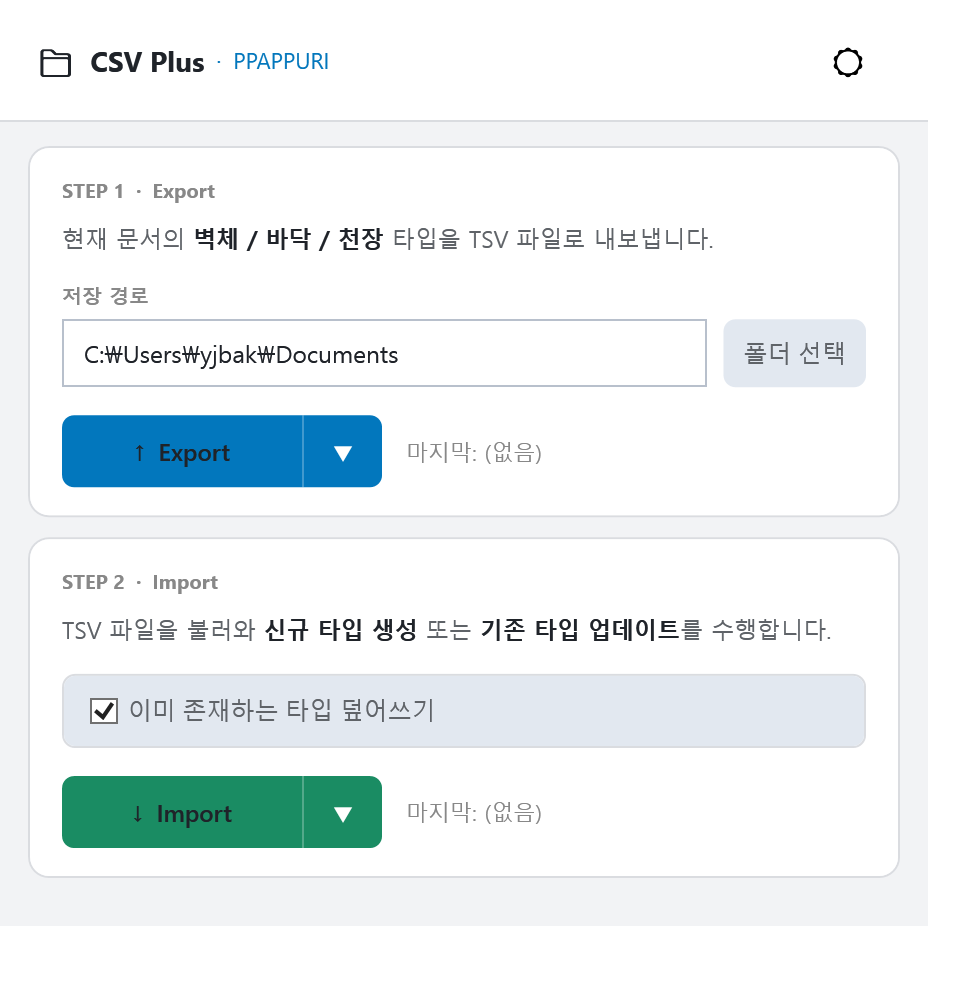
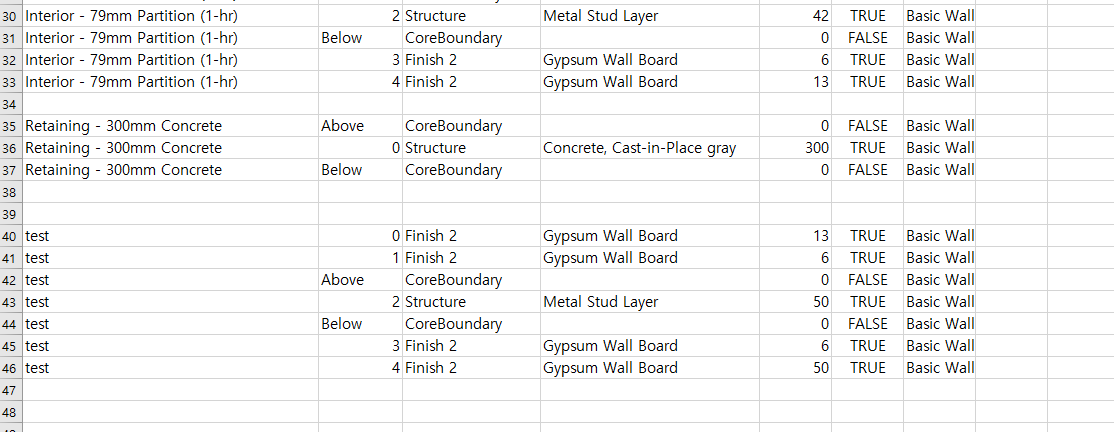
- Choose a folder, then click the arrow (▾) next to Export
- Choose Floor / Ceiling / Wall / Structural Foundation
- After editing in Excel, click the arrow (▾) next to Import
*Refer to the built-in default families when filling it in.
Plus ID
- Search element IDs inside linked files
- Made because Revit's built-in ID search cannot find elements in links
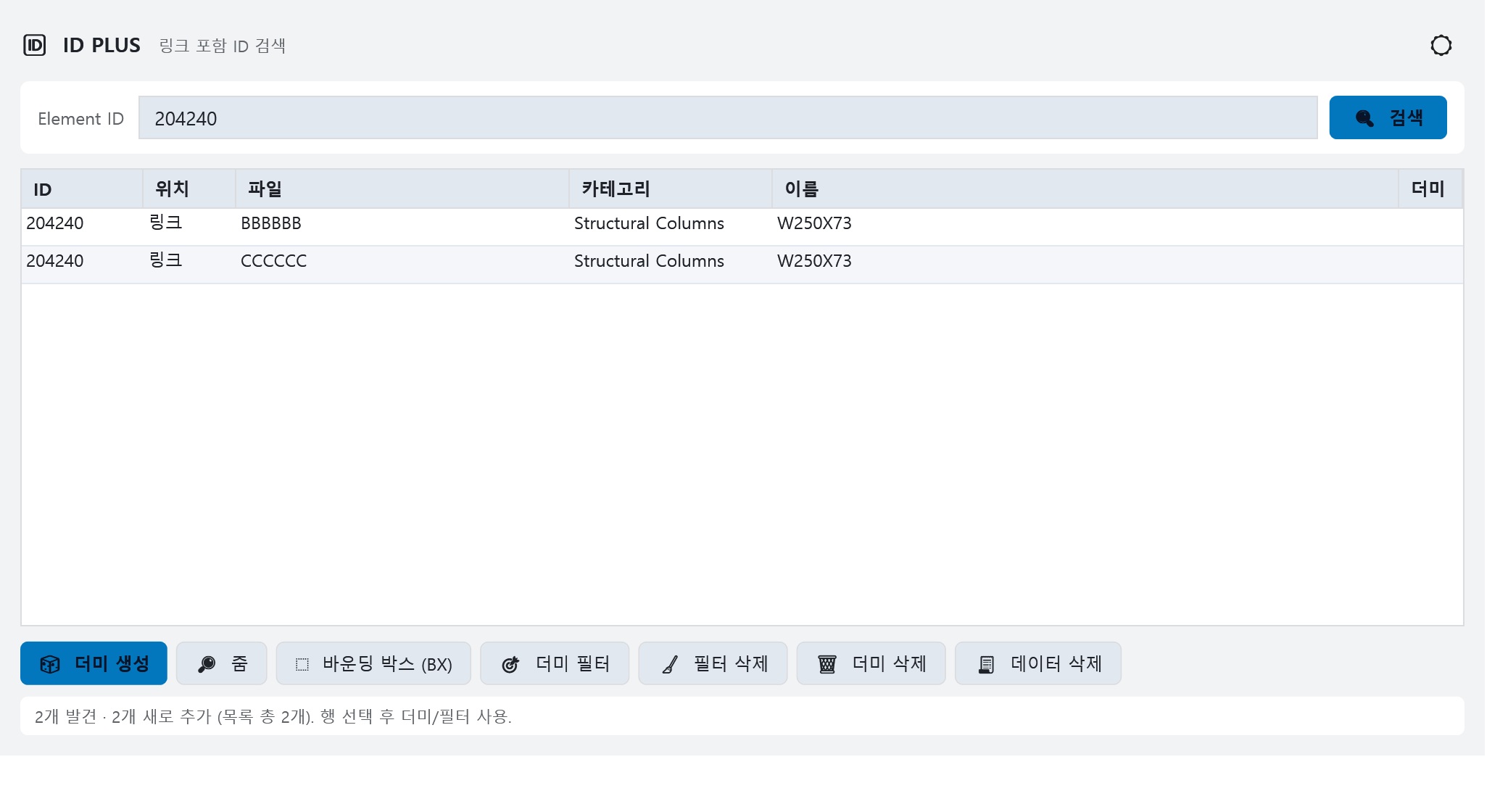
- Enter an Element ID and search → scans the current file and every linked file for elements with that ID
- Zoom / Bounding box (BX) → jumps to the element in the selected row
- Create dummy → creates a host DirectShape at the linked element's position (linked elements cannot be selected or highlighted directly)
- Dummy filter → highlights those dummies with a view filter in the current view. Clean up with Delete filter / Delete dummy
- Clear data → empties only the search list stored in the add-in (Revit elements and dummies are not deleted)
*Each linked file numbers its IDs separately, so one number can return several hits. Use the ‘Location’ and ‘File’ columns to tell them apart.
Plus Excel
- Merge or split Excel files by the values in a column
- Never touches your Revit model, so it works even with no model open

- Merge — many files into one. Choose "one file, multiple sheets" or "one file, single sheet"
- Split — by the values in a key column, either "into sheets" or "into files"
- Extract — pull only the sheets you tick into a new file (the original is left alone)
*When merging into a single sheet, columns are matched by header name, so values stay aligned even if the files order their columns differently.
*Reads and writes both xlsx and csv.
Plus Wall — Auto Opening(Family)
- Auto-place opening families where objects interfere with a wall (detects objects in linked files too)
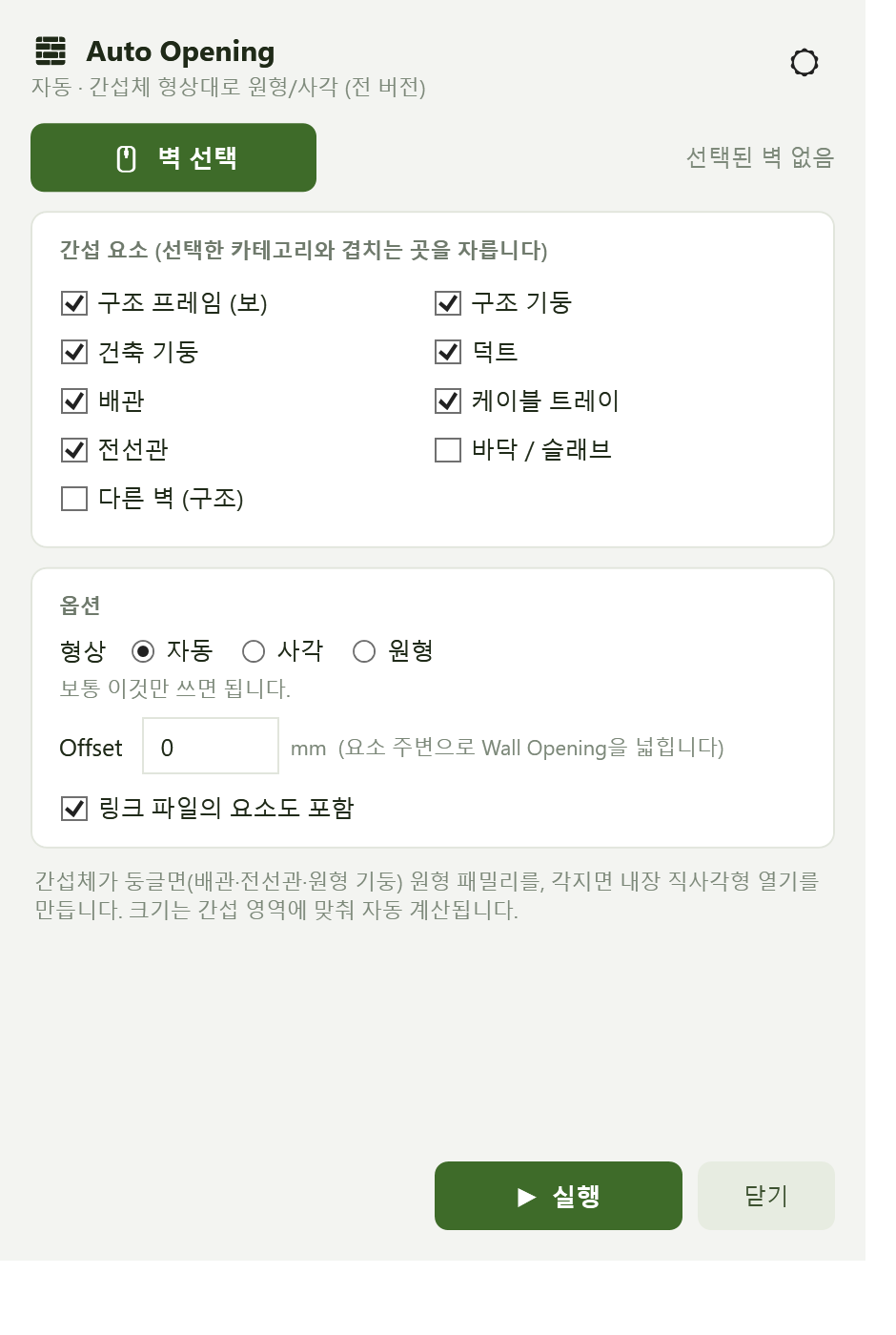
- Select walls
*You can pre-select the desired types using Plus Filter
- Check the interference items
- Run
*Created as a built-in family, so only rectangular opening families are supported
Plus Wall — Auto Attach
- Auto-attach architectural walls to the structure (adjusts height; not the Attach command)
⚠️ Profile-edited walls are skipped automatically
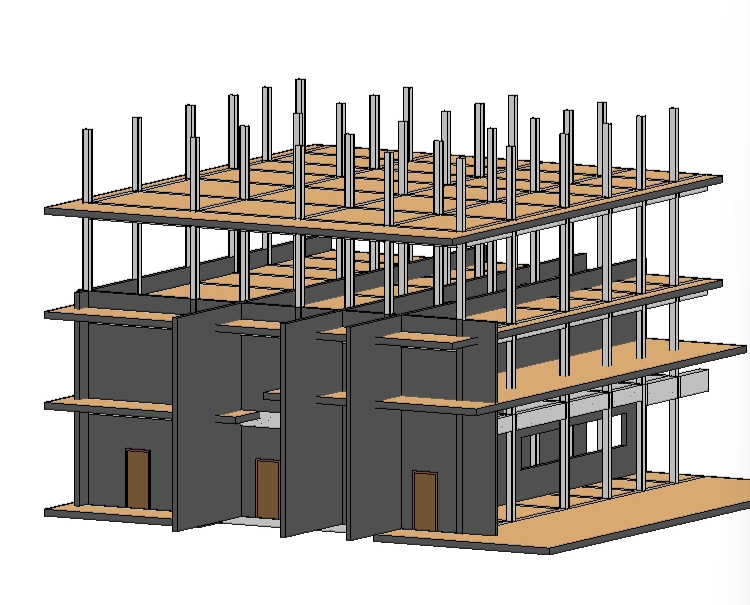

- Select walls
*You can pre-select by type and level using Plus Filter
*Recommended to run floor by floor
- Choose options
*Split wall when top/bottom structure heights differ — as shown below, the wall is split automatically when attach heights differ
*Attach under a parallel beam — as shown below, attaches to the beam's underside
- Choose interfering structure types → only checked items are treated as structure
*The image below follows the options set in the image above

- Link & Level — selecting a level is recommended to minimize errors
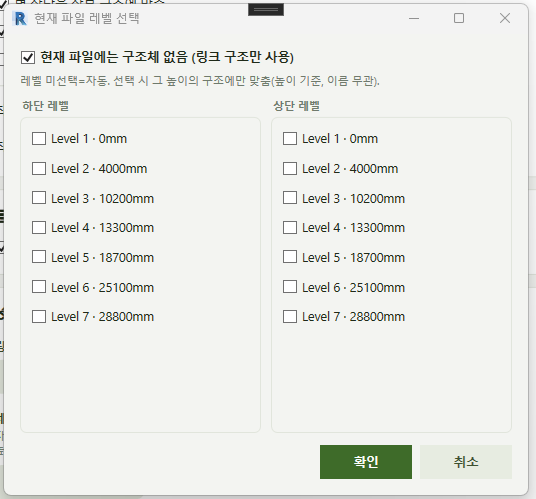
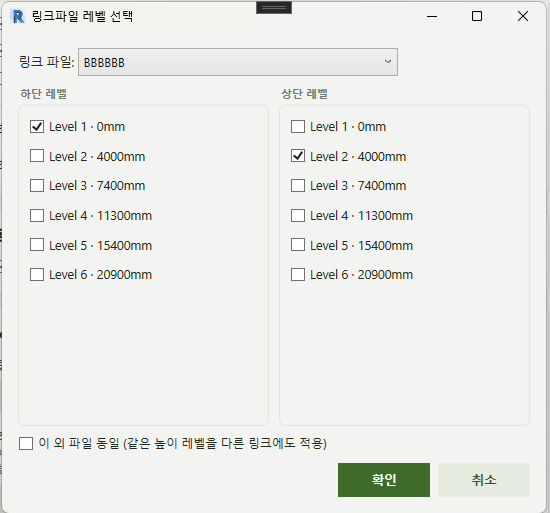
*Current-file level and linked-file level are chosen separately, in case the linked (structure) file's levels differ
*Other files identical → check this when there are multiple structure files sharing the same levels
Plus Wall — Auto Peel
- Split a wall into its layers
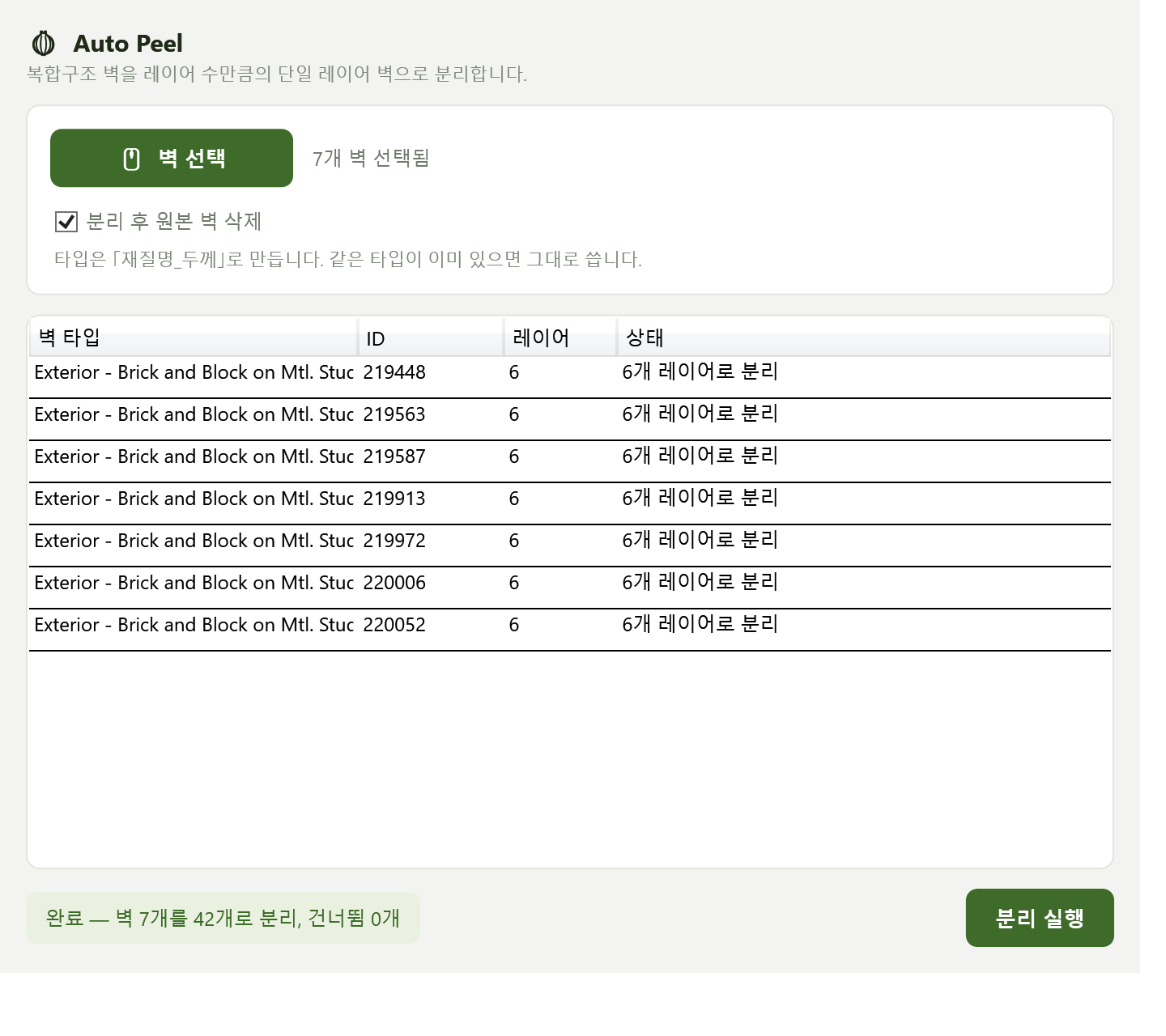
Plus Wall — Auto Profile
- Convert a wall's Wall Opening into an edited profile