Drawing
Grid/Level to 2D
- Convert levels/grids to 2D and copy their extents
- Very handy for documentation work!

- 3D→2D → converts the current view's grids and levels to 2D
- Copy extents → copies the length of grids and levels. Levels copy up to the nearest grid.
*If a level's start/end are reversed (e.g. E↔W / N↔S), check “Flip start–end length”
- ON/OFF → toggles grid and level bubbles
Edit Sheet
- Simplifies creating and editing sheets
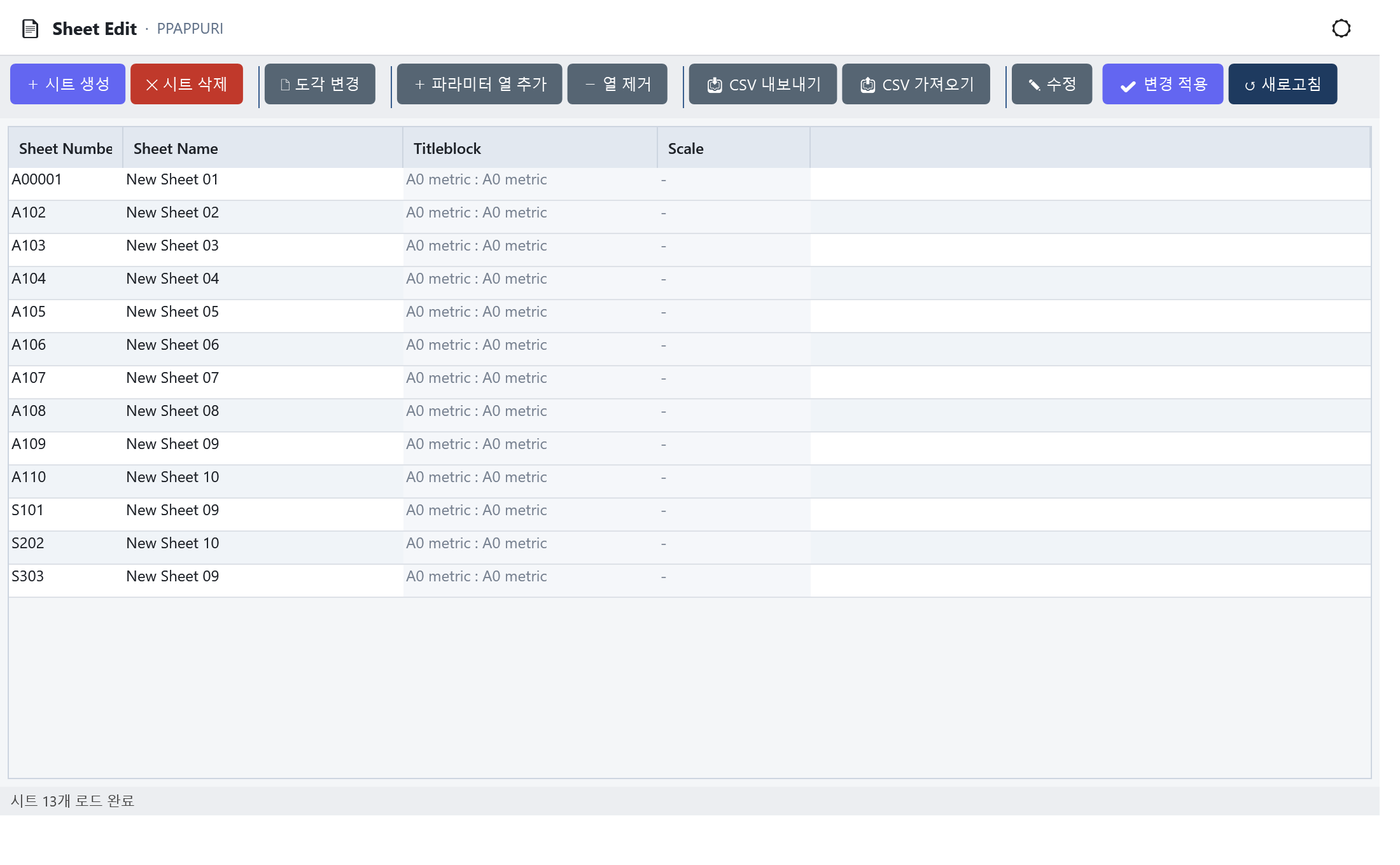
- Create sheets → auto-generate sheets
- Change title block → select one or more sheets, then click the button
- Add parameter column → pick a view parameter to add it as a column
- CSV export/import → export to Excel, edit, then re-import
- Edit → double-clicking a row jumps to that sheet, but the Edit button lets you edit cells
*Occasionally, due to a Revit bug, the Project Browser may look like the Sheet Number or Name didn't change (the actual data is updated)
Edit View
-
Save a view's position and apply it (native feature in Revit 2025+)
-
Auto-match views to sheets (Good)
-
Very handy for documentation work!
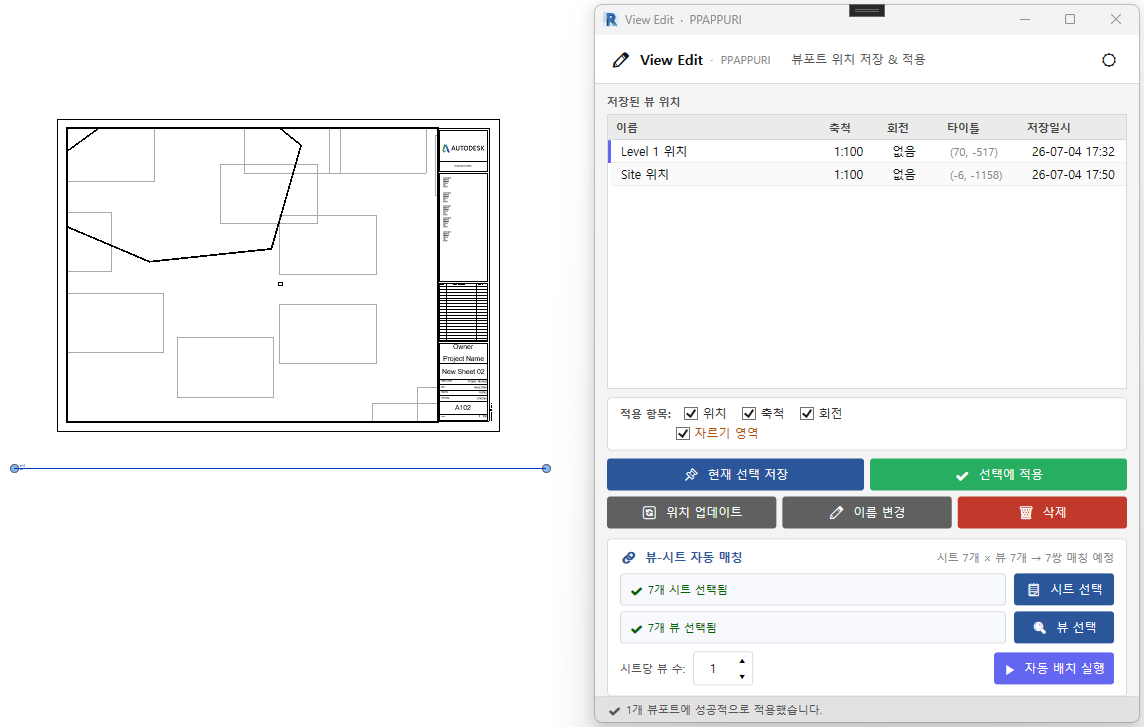
- On the current sheet, select the View whose position you want to save, then click Save current selection
⚠️ Not recommended on Revit 2025+ (a built-in feature exists)
⚠️ On Revit 2022+, applying title positions is also supported
- Select the View to apply the position to, then click Apply to selection
⚠️ If the position is off, click Update Position in the saved-views list
- Update position → updates the saved view's position (also updates every view that used it)
- Auto-match view to sheet → select sheets and views, then run auto-match
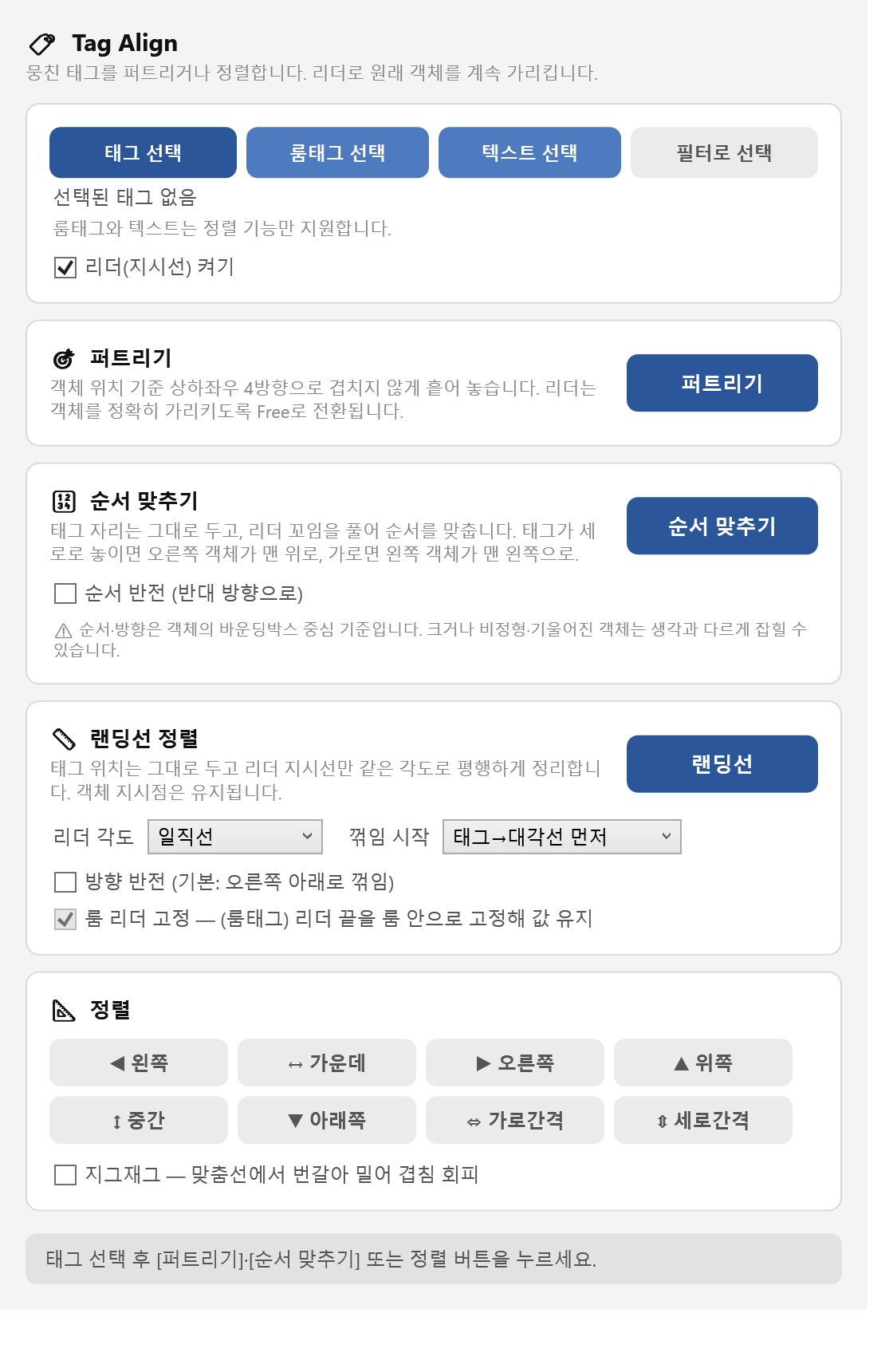
Tag Align
- Align tags