Copy
Copy View
- Multi-copy and bulk-rename existing views
- Handy for team modeling and documentation work
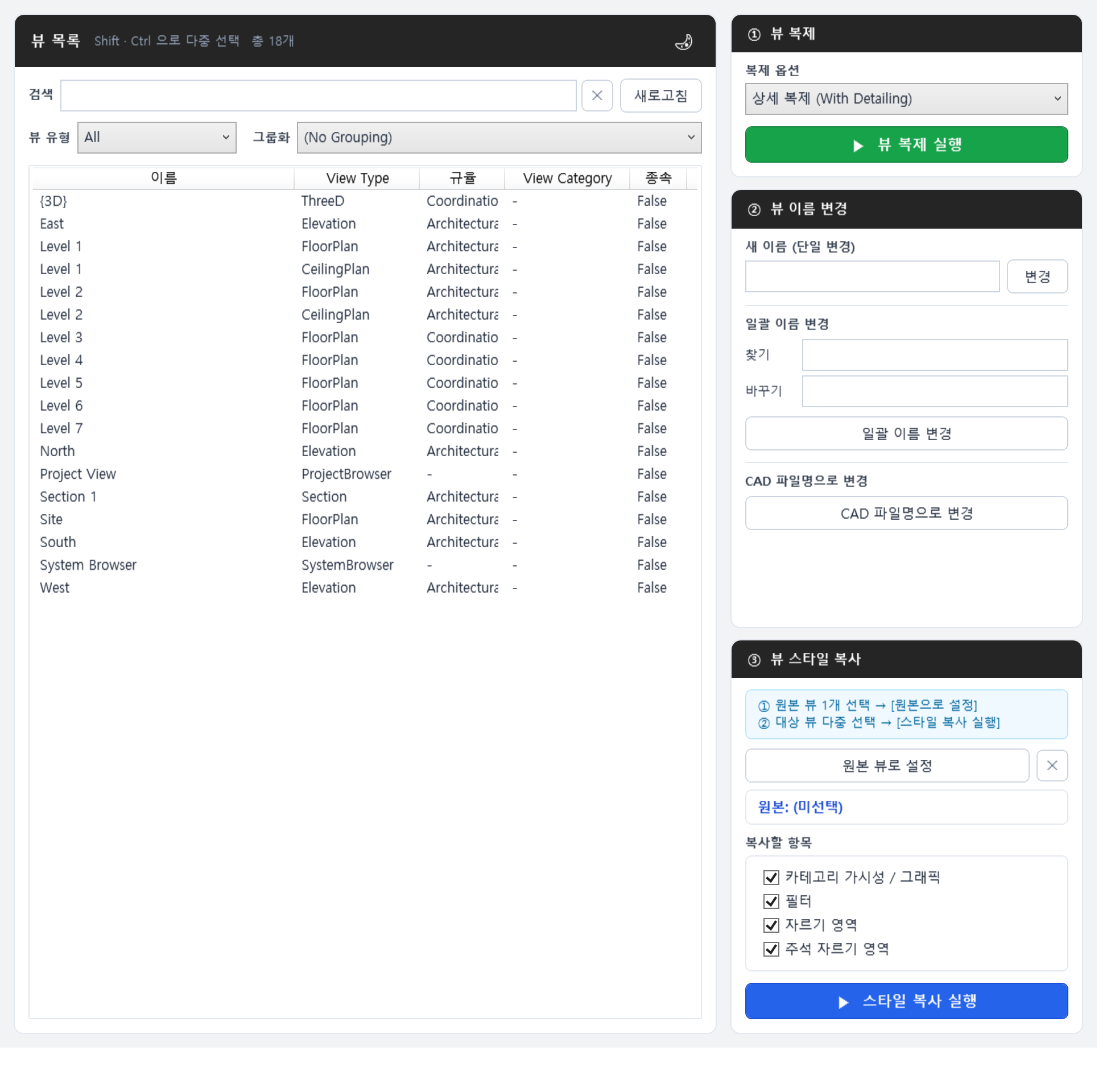
- Refresh button → loads the views in the current file.
- Duplicate views: select one or more views → run duplicate.
- Rename views: replace a specific word in the view names with the word you want
- Copy view style: select one view and click “Set as source view” → select one or more views, then run copy style.
Copy Shape
- Copy the boundary of a floor, ceiling, or roof and paste it onto another
- Occasionally handy
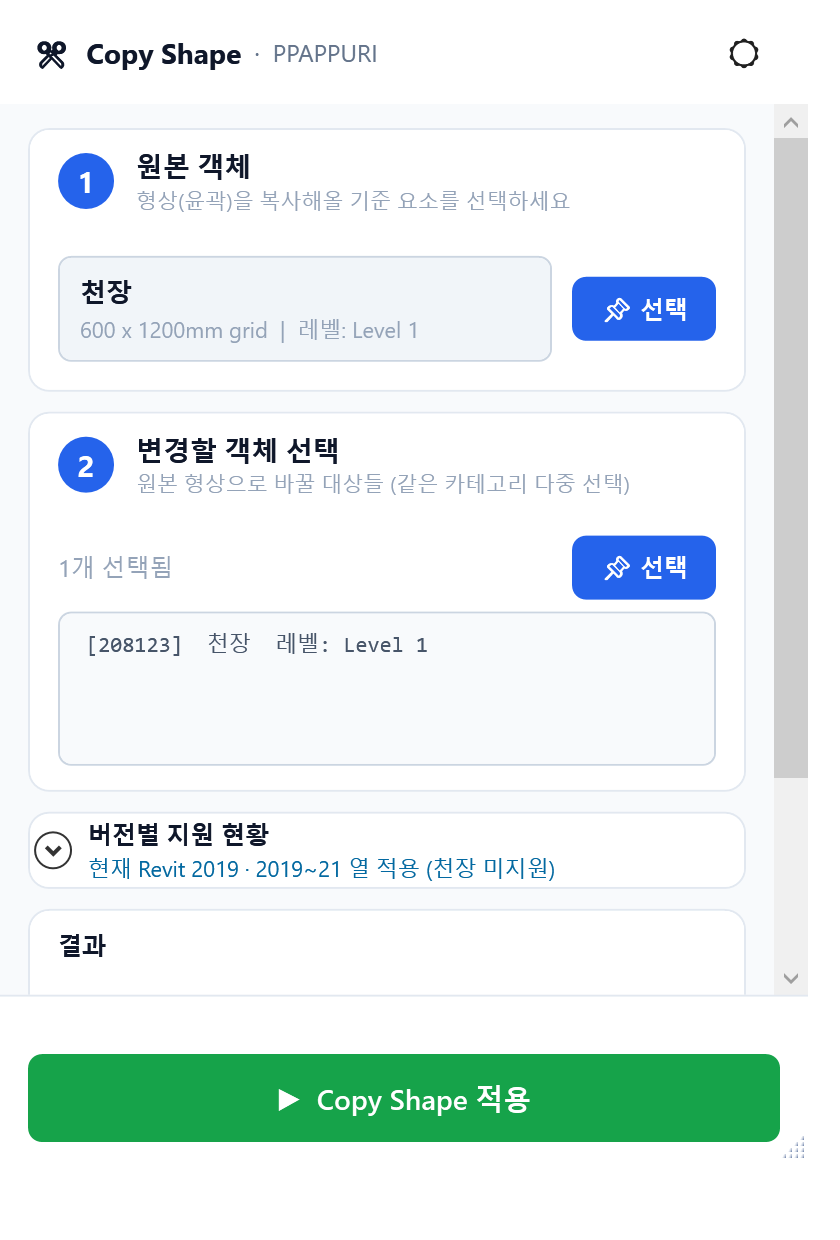
- Source object → single selection
- Target object(s) → single or multiple selection
⚠️ Some limitations vary by Revit version
Copy Filter
- Save the current view's filters and apply them to other views
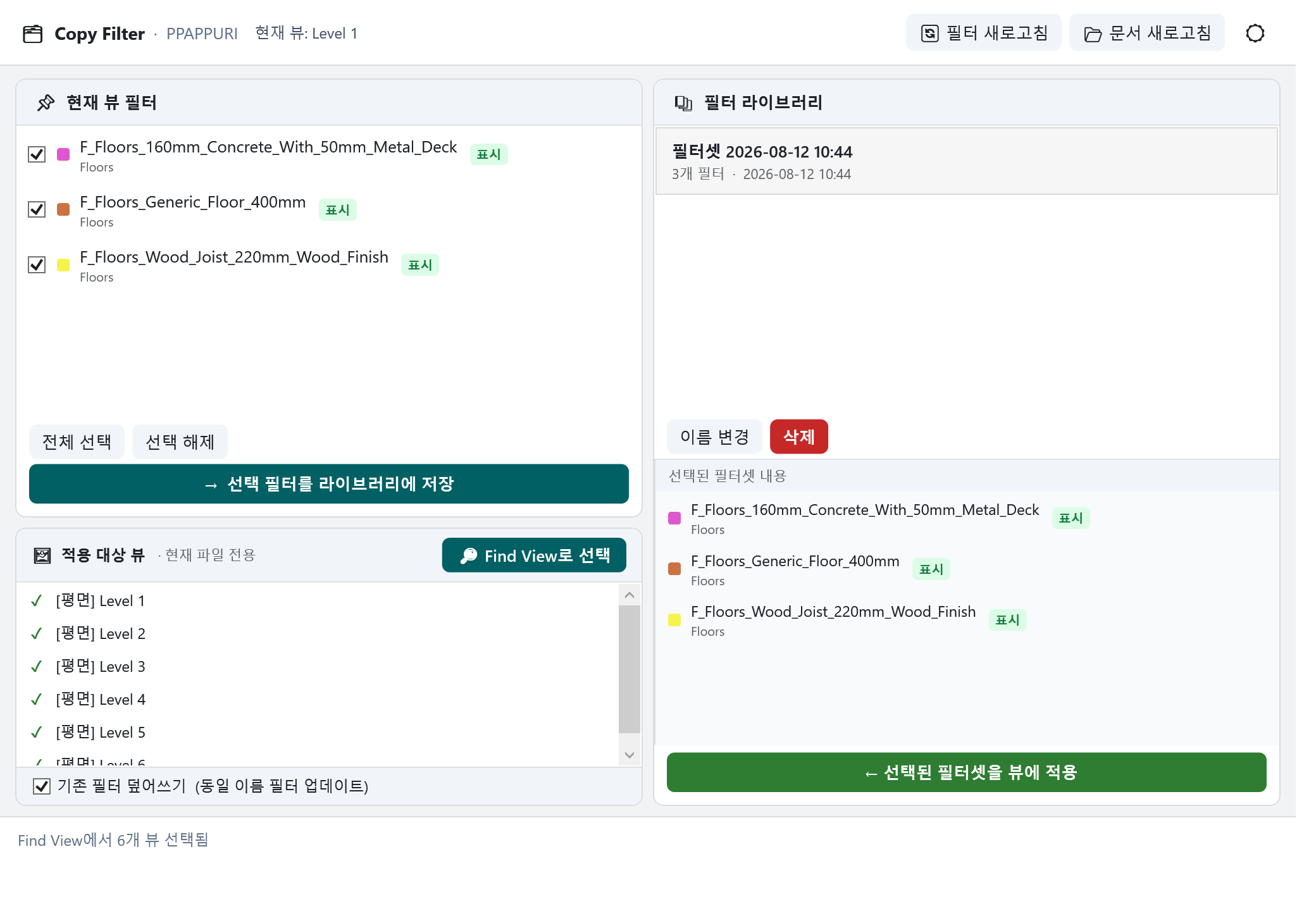
- Refresh filters → loads the filters currently defined
- Save selected filters to the library → choose the filters to copy, then click the button
- Select via Find View → choose the views to apply the filters to
- Apply the selected filter set to views → choose a filter set from the library, then click the button
*Filters can be loaded and applied even when a view template is in effect
Copy Grid/Level
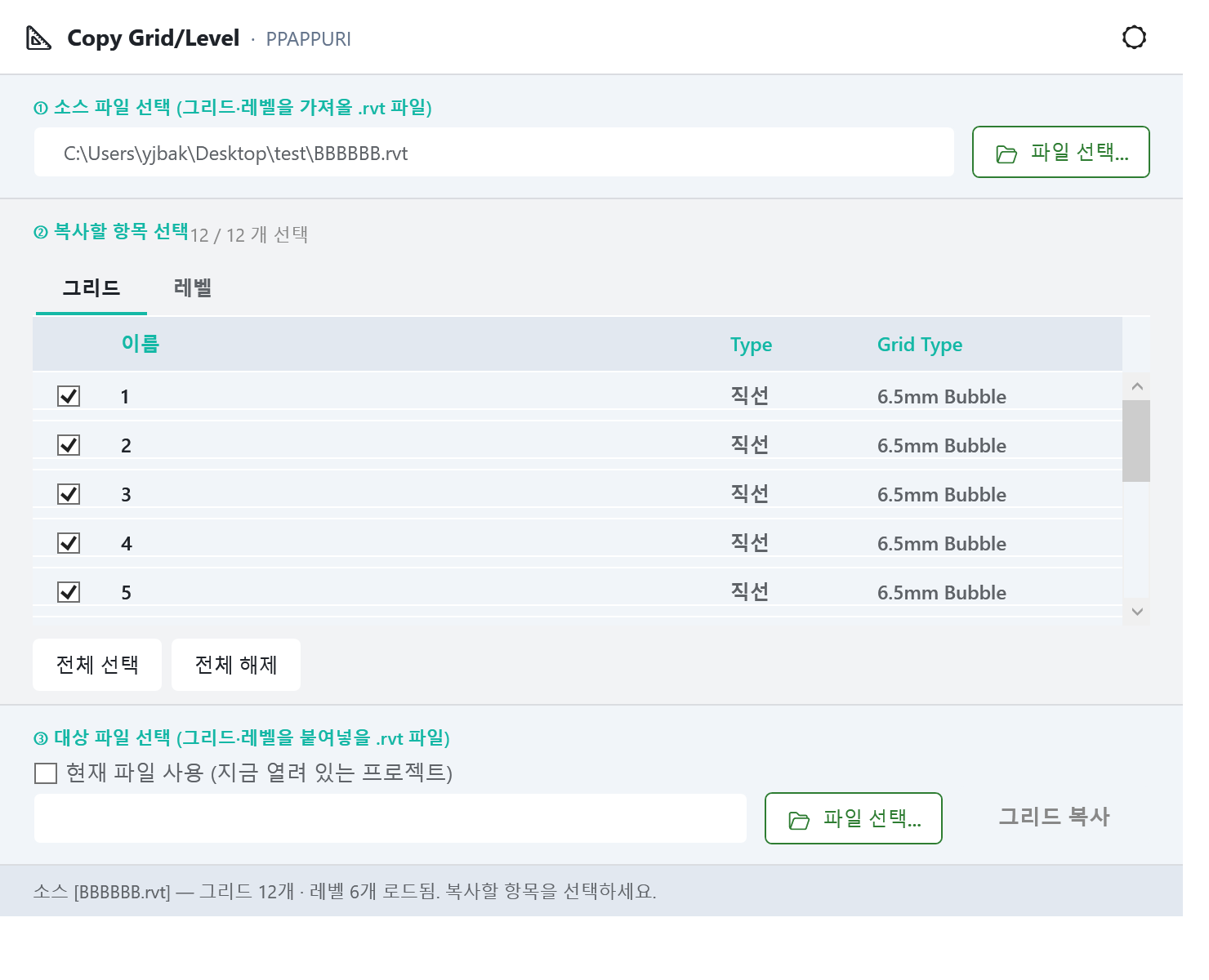
- Pull grids and levels from another file
Copy Parameter
- Apply the shared parameters of the current file to other files
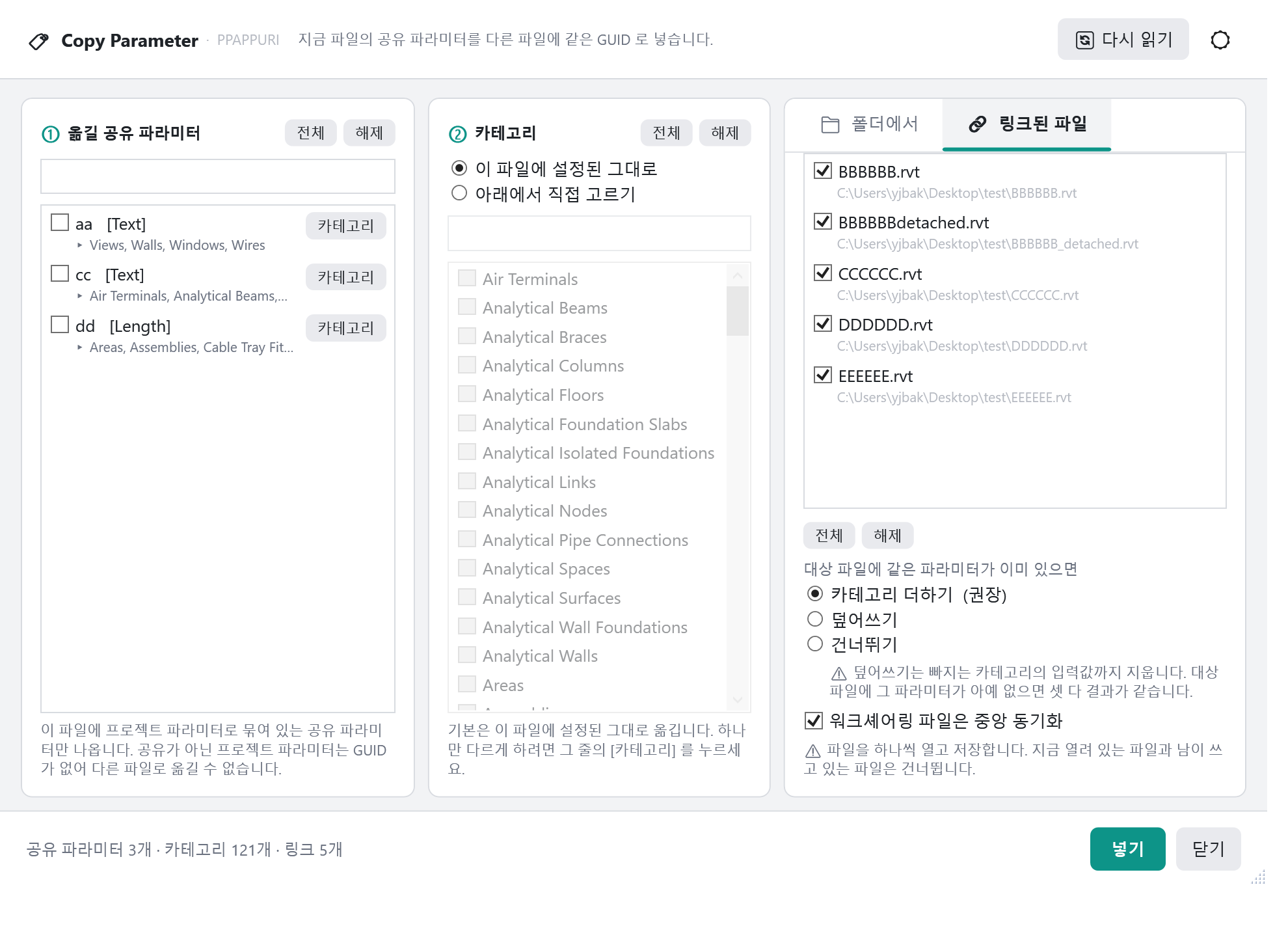
- Shared parameters to copy — click "Re-read" to load the shared parameters, then tick the ones you want
- Categories — the categories bound in the current file are carried over as they are; pick your own if you want to change them
- Target files — scan a folder to pick files, or apply straight to the linked files
*They are bound with the same GUID, so the target files see them as the very same parameter.